The quick answer
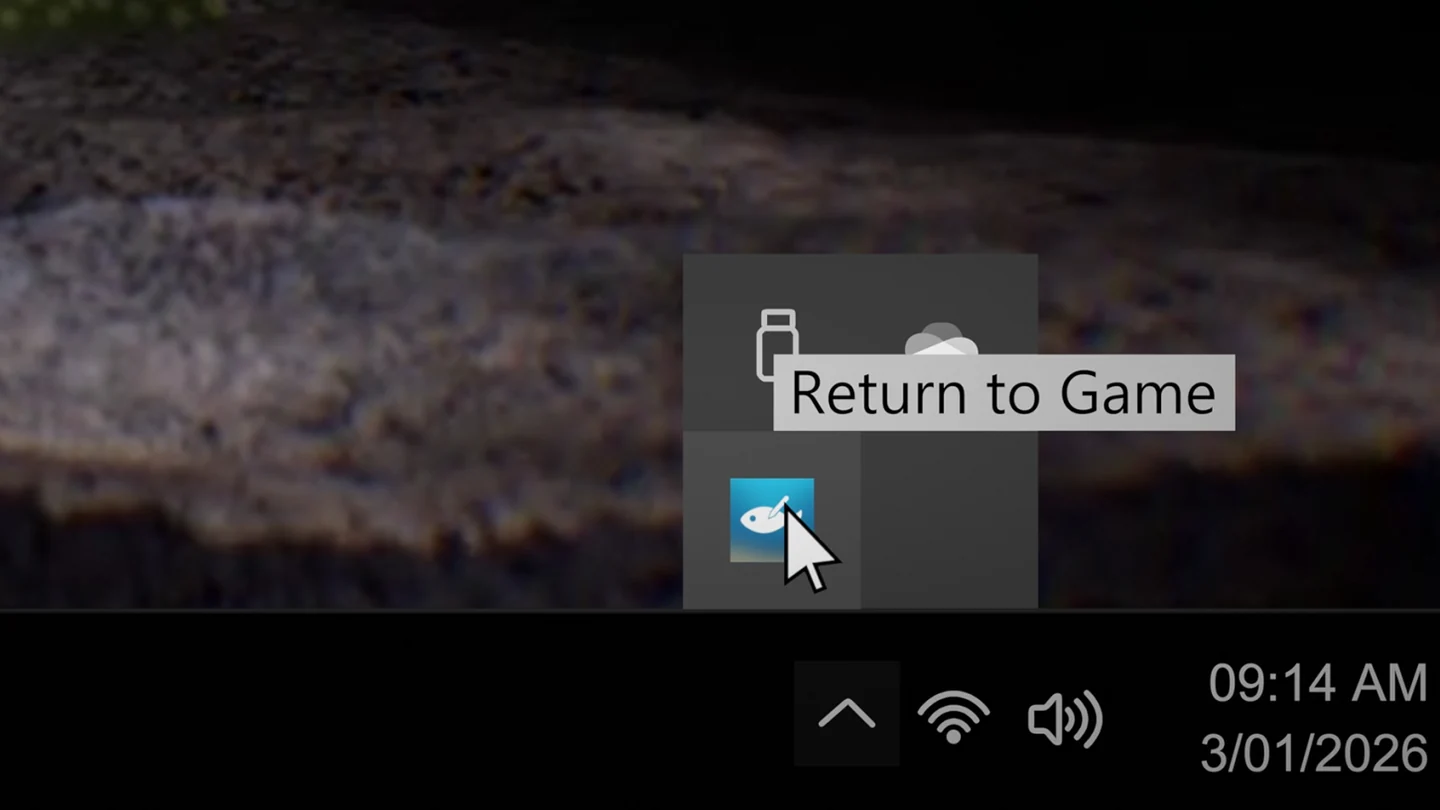
Turn on Desktop Wallpaper Mode to put your aquarium behind your Windows desktop icons. To return, click the Drawquarium icon in the system tray by the clock. If the wallpaper looks blurry or runs at a low frame rate, return to the game and turn off Sleep Mode with the Zzz button. That can improve the picture, but the wallpaper will use more resources.
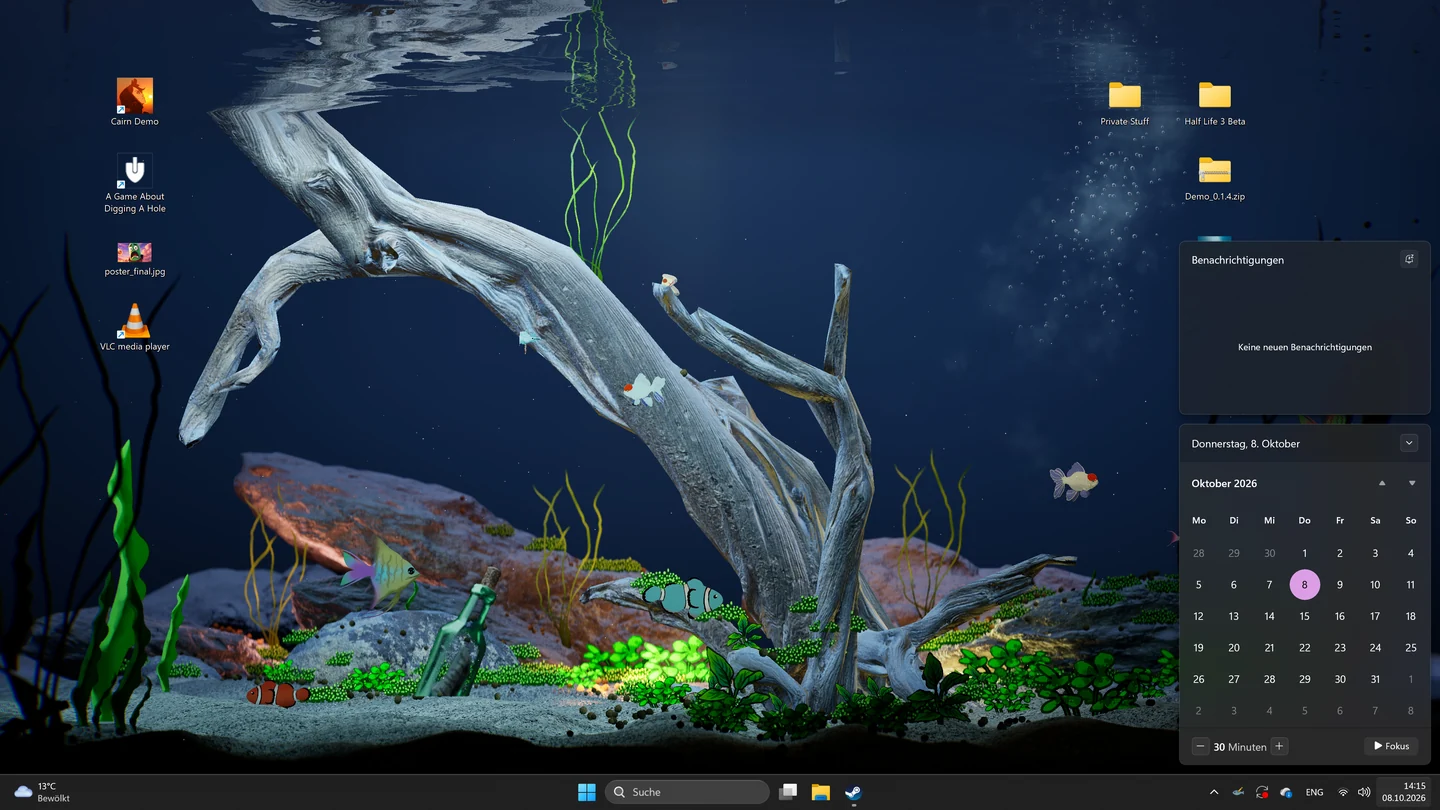
Set up the wallpaper and find the way back
Steam lists Drawquarium for Windows. The free Steam demo is a good first check if live wallpaper is the main reason you want the game, especially on older hardware.
- Open Drawquarium and pick the aquarium you want on your desktop. Turn on Desktop Wallpaper Mode in the game.
- Show the Windows desktop and check that the tank is visible behind your icons. Put the usual windows back where you keep them and check how the aquarium runs in your normal setup.
- Return to the game by clicking the Drawquarium icon in the Windows system tray next to the clock. If you don’t see the icon, check the hidden icons under the tray arrow. Use this route if the in-game return button is behind the taskbar.
Fix a blurry or choppy wallpaper
The developer explains that Sleep Mode reduces wallpaper activity when it thinks another app covers it. Wallpaper Engine is one example. If the tank is visibly pixelated or choppy, return through the tray and turn off Sleep Mode with the Zzz button. Switch back to Wallpaper Mode and compare the same tank with the same apps open. That makes it easier to tell whether Sleep Mode was the trigger.
Leaving Sleep Mode off increases resource use. If the picture and frame rate don’t improve, turn it back on and report the issue. If the change helps, decide whether the smoother picture is worth keeping the wallpaper active while you work or play.
Check startup, freezing and multiple displays
| What you see | What to try |
|---|---|
| The wallpaper hasn’t appeared after restarting Windows | Give it about a minute. The developer notes that startup can be delayed. Avoid manually opening a second copy during that wait. |
| Autostart opens two instances | Note whether you launched the game manually and whether the duplicate appears on every restart. The developer lists duplicate startup as a known issue. |
| The game freezes when switching modes | If the tray icon still responds, use it to get back to the game. When reporting, say whether the freeze starts during the switch and whether the tray still works. |
| The picture is distorted across monitors | Record how many monitors are connected and each resolution. If you can test on one display, include whether the distortion goes away. This helps isolate the display setup for support. |
Send a report the developer can reproduce
If you can reach the wallpaper menu, use the report button next to Cancel. The developer says this attaches your Windows DxDiag file. If the game freezes before you can reach the menu, use rokaplay’s browser report form.
Include the build you’re using (demo or full game), your graphics card, the number and resolutions of your displays, and the step where the issue begins. For a performance issue, say whether Sleep Mode changed it. For a startup issue, say how long you waited and whether another instance opened. Those details let support distinguish the known startup delay from a wallpaper that never appears.
For drawing, PNG imports and the developer’s notes on moving your demo aquarium to the full game, see the Drawquarium hub.
More help with saves & setup across our game guides.
Sources
- Wallpaper Mode: known issues, workarounds and reports (November 10)rokaplay developer account · Checked Nov 13, 2026
- Steam listing: Windows support, Wallpaper Mode and demobyKaleb / rokaplay · Checked Nov 13, 2026
- Drawquarium FAQ: demo carryover, backup and platform support (November 10)rokaplay developer account · Checked Nov 13, 2026
- Before You Buy Drawquarium (November 12)byKaleb · Checked Nov 13, 2026
- Drawquarium press kitrokaplay · Checked Nov 13, 2026
- Drawquarium issue report formrokaplay · Checked Nov 13, 2026