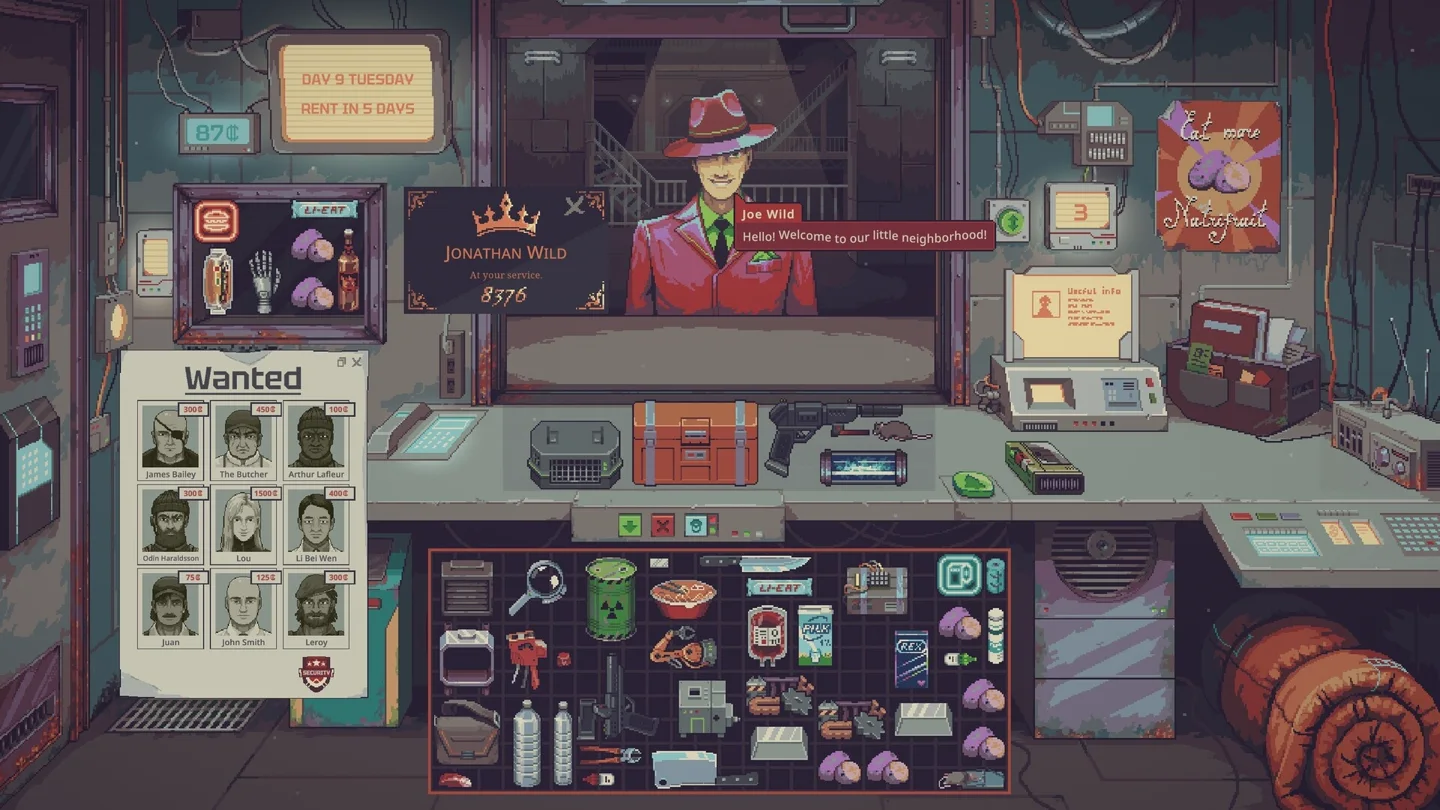
The quick answer
Check the visitor’s face, behavior, faction outfit and dialogue against the Augmented Identification Guide. If the clues are inconclusive, use a powered Aug Scanner on the current visitor and wait for a completed reading. Holster if you still cannot confirm who is in front of you.
Check the eight Aug signs at the window
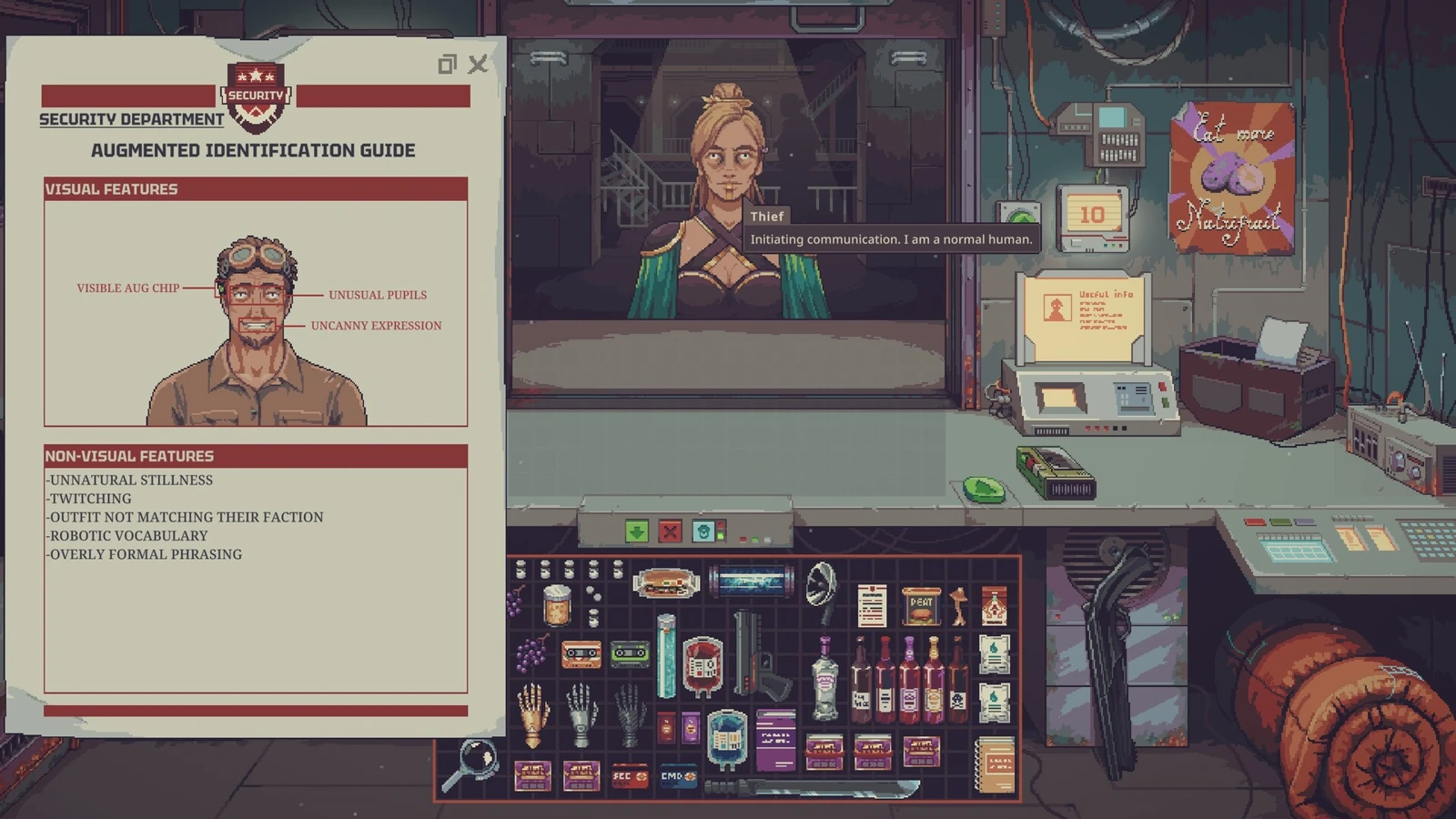
Open the Augmented Identification Guide and work from the face to the conversation. The publisher shows eight clues in the in-game document.
| Where to look | What to compare |
|---|---|
| Face and head | Look for an exposed implant, oddly shaped pupils and an expression that looks forced. Compare those features together. |
| Movement | Watch for twitching or unusually rigid stillness. Give yourself time to see whether the behavior repeats. |
| Clothing | Read the faction label and compare it with the outfit. A mismatch is a reason to inspect more closely. |
| Dialogue | Read the whole line for machine-like word choices or stiff, formal speech. The publisher’s screenshot shows a visitor awkwardly insisting they are human. |
An order for medical supplies or materials can put a visitor on your radar. A normal customer can want the same goods. If you see a suspicious line and an ordinary face, check movement and clothing, then scan if you can. If Security’s daily report warns that an Aug may visit, inspect the queue. The report does not identify an individual.
In one launch-week report, a player shot a visitor after seeing flashing eyes and clothing that seemed wrong for the faction. The player reported that the visitor turned out to be human. If those are the only clues you see, scan the customer or leave the shotgun holstered. Player report on Steam.
Use the Aug Scanner and read the result
- Get the Aug Scanner if Dr. Jackson offers it and check that it has power before the next suspicious customer. The item description identifies it as the detector for suspected Augs. The Scav Scanner and AquaScan serve different tasks.
- While that customer is still at the window, check the scanner’s battery slot. Release-era references list 25 power per scan and describe double-clicking the scanner to run it. Follow your item’s prompt if it differs. We did not independently test the current build.
- Before acting, verify the reading belongs to the visitor you are looking at. If the customer changed during the check, scan the new visitor separately.
| Scanner text seen in early 1.0 | What to do |
|---|---|
| Ready to scan | The device is waiting. Use the indicated control and look for a completed reading. |
| AUG DETECTED | This is a positive reading for the customer who was scanned. Check that they are still present before considering the shotgun. |
| No Aug detected | This is a completed negative reading. Keep the weapon holstered for that customer. |
| Nothing changes or the scanner has no power | Treat the encounter as unresolved. Check power and the current device prompt before trying again. |
Act only when you have a clear identification
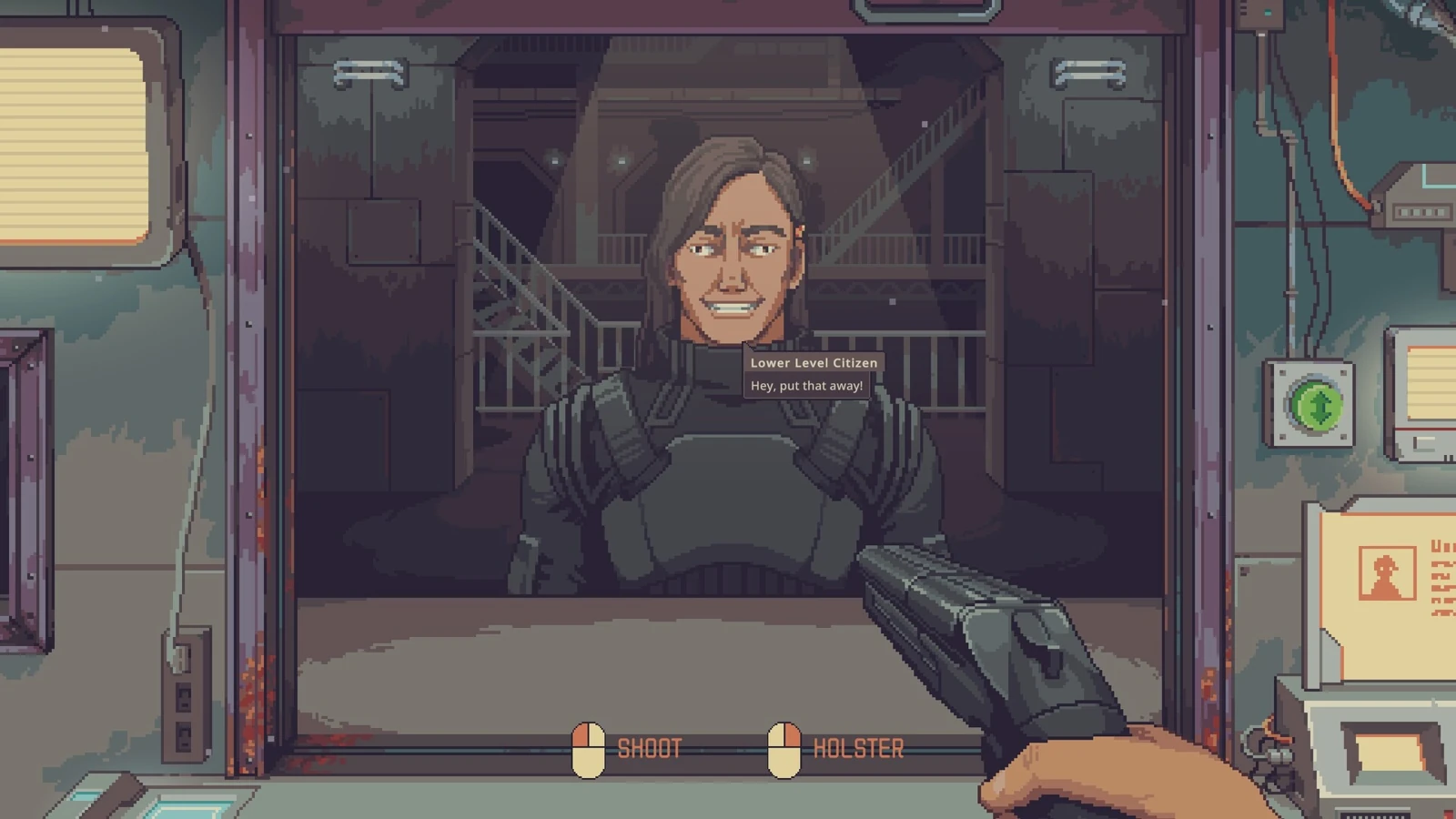
If the shotgun is available and you have confirmed an Aug, use the controls shown in the aiming view. The publisher’s screenshot shows left click to shoot and right click to holster. Choose Holster if the reading did not complete, you lost track of the customer, or the identification is uncertain.
The Mentor’s note warns that an Aug can flee before Security arrives. A visitor you recognize from a Wanted poster calls for the bounty workflow and its Security option. For shotgun availability, read the prompt in your current run. Update 1.0.0.12 extended how long you can keep the weapon and changed which story characters can be shot, so a fixed warning-day rule from an older guide can mislead.
If you brought in an older run or mod, check the demo save and full-release compatibility guide before diagnosing differences.
More help with crafting & progression across our game guides.
Sources
- Full release and Security’s Augmented Identification Guide screenshotQuesting Goose Studio / tinyBuild · Checked Nov 14, 2026
- Cumulative update 1.0.0.12: shotgun retention and story charactersQuesting Goose Studio / tinyBuild · Checked Nov 14, 2026
- Aug Scanner item referenceWikily (community reference) · Checked Nov 14, 2026
- Early 1.0 scanner states and Mentor noteProbably Stolen Wiki (community reference) · Checked Nov 14, 2026
- Full-game Aug encounters, Steam build 26496118Cluefile (community reference) · Checked Nov 14, 2026
- Early release scanner input and power requirementShopkeeper Guide (community reference) · Checked Nov 14, 2026