The quick answer
You can convert an existing save in either direction from the main menu. Choose the mode that currently owns the save, select that save, then use its conversion option.
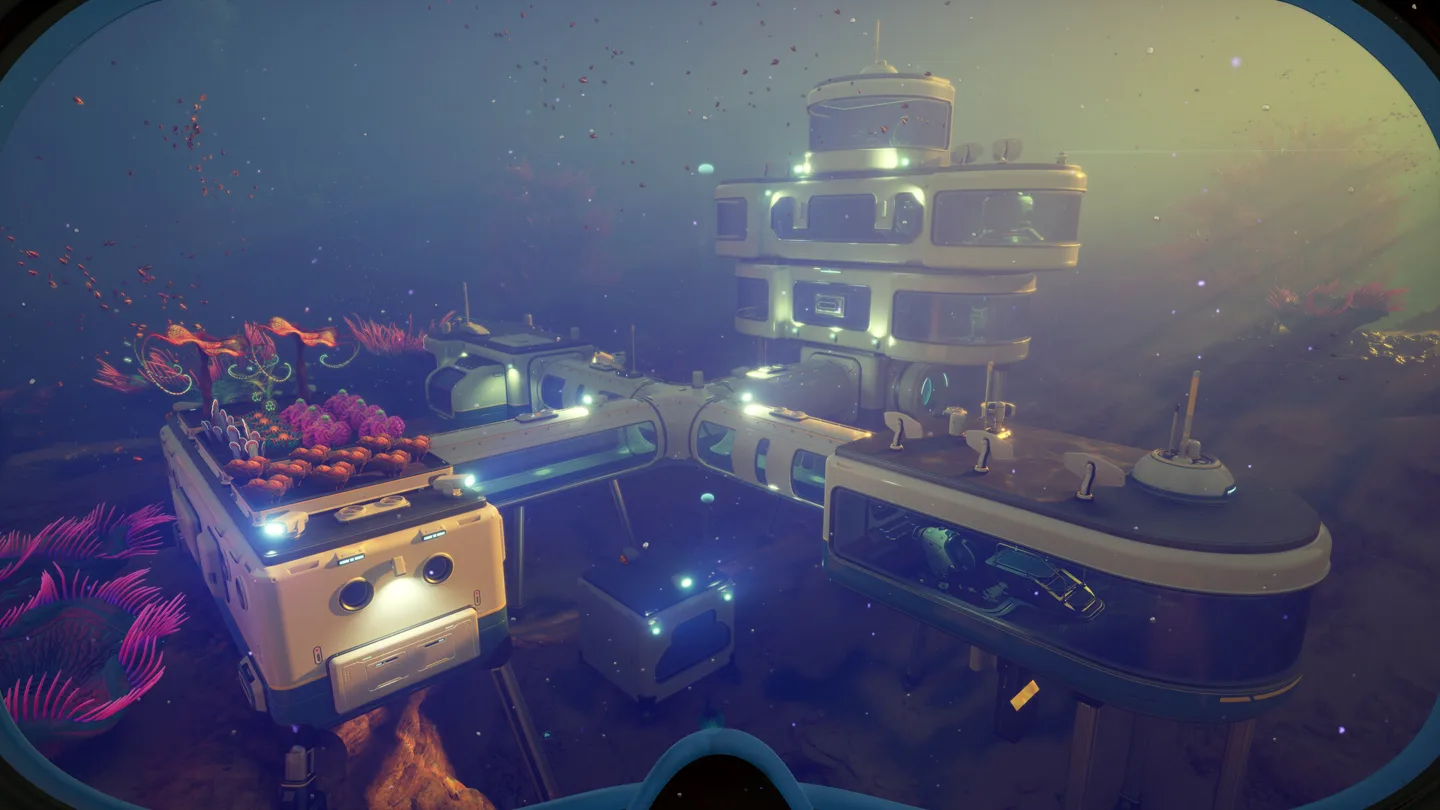
Turn a solo world into co-op
From the main menu, open Play Single Player, select your existing save, then choose Convert to Multiplayer. This is the official route for changing an established solo world rather than starting over solely to invite friends.
Turn a co-op world into solo
Open Host Multiplayer from the main menu, choose Select Save Game, select the world, then use Convert to Single Player.
The useful distinction is the entry menu: begin where the save currently lives. Looking only in the destination mode can make the world appear to be missing.
Before converting
Identify the exact world and keep a backup before changing how an important save is used. Our recommendation is to note its name and latest play session, especially if you have several similarly named test worlds.
These instructions describe mode conversion. They do not establish that a guest automatically owns a transferable copy of the host’s world, nor do they move saves between development branches.
If the save is absent from both menus
Check whether you changed between Default and Experimental. Those branches keep separate saves, which is a different issue from solo/co-op conversion. Follow the Experimental save visibility guide before creating a replacement world.
More help with co-op & servers across our game guides.
Sources
- Convert a multiplayer game to single-playerUnknown Worlds support · Checked Nov 7, 2026
- Convert a single-player game to multiplayerUnknown Worlds support · Checked Nov 7, 2026