The quick answer
Open a game’s Steam Store page and select Learn more under Steam Deck Compatibility. If Steam has enough data, the panel shows an average FPS. Select the arrow beside it to open the framerate histogram. Hades II is a public example you can try.

Where to see average FPS on the Steam Store
- Open the game’s store page. Try Hades II on Steam if you want a page known to have data.
- Find Steam Deck Compatibility in the store sidebar and select Learn more. If the panel has multiple device tabs, choose the Steam Deck tab.
- Below Valve’s compatibility notes, look for the average FPS line. Select the down arrow on that row to open the chart. When both model tabs are shown, select Steam Deck OLED or Steam Deck LCD to see that model’s average and distribution.
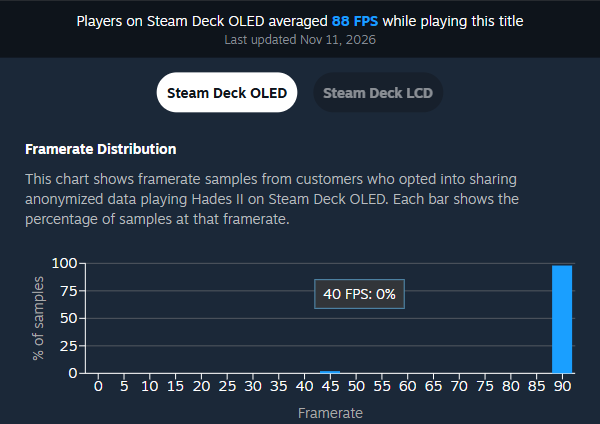
On November 14, Steam showed 88 FPS on OLED and 58 FPS on LCD for Hades II; the panel said the data was last updated November 11. These numbers are Valve’s aggregates and can change as Steam refreshes the data. You can check the store panel in a browser without sharing your own performance data. Valve also says the data is available in the desktop and Deck Steam clients after the November 11 rollout. In the Library, open the game’s Deck compatibility details to look for the same FPS data.
How to read the framerate histogram
The bottom axis shows frames per second. Bar height shows the share of samples at each framerate. Multiple samples can come from one session, so the bars do not tell you what percentage of owners hit a certain FPS. On the Hades II OLED chart, the tallest bar sat at 90 FPS even though the average was 88 FPS. That is the difference between the most common sample and the mean.
| What you see | What to check before you buy |
|---|---|
| A tall cluster near your target | The Decks in Valve’s sample often hit that framerate. Read the compatibility notes too, particularly for text, controls or setup. |
| A high average and small bars at much lower FPS | The average can hide hitches. If drops matter to you, check how much of the chart falls below your target and look for gameplay footage from demanding areas. |
| Two peaks, such as 45 and 90 FPS on OLED | A display refresh mismatch and VSync can create that split. Valve also gives the example of a game with an internal 60 FPS cap. A single middle number does not tell you that gameplay held that rate steadily. |
The chart gives you distribution, without a timeline. A low bar cannot tell you whether a drop happened during a boss fight, menu transition or another scene. It also does not report a benchmark’s 1% lows or reproduce the conditions of a preset-specific test.
Verified, Playable and Unsupported answer a different question
The badge summarizes Valve’s compatibility checks, which include things like input, display and how well the game works with the default configuration. The FPS panel summarizes recorded performance from players. A Verified game may still run below the framerate you prefer. An Unsupported game can have framerate data too; read the reason for the rating before deciding whether a high FPS figure helps. It cannot tell you whether a blocker such as a launch failure is resolved.
If the compatibility panel opens and there is no FPS row, Valve may not have enough valid samples to publish it. A missing number gives you no performance verdict. For a worked example of reading the badge and its notes separately, see our Moon Sweepers platform and controller guide.
What Steam measures on LCD and OLED
Valve uses opted-in Steam Deck data and filters for the default device frame limit: 60 FPS on LCD and 90 FPS on OLED. Those numbers describe which samples qualify, rather than the performance each game should reach. Match the hardware label on the chart to your Deck before using the number.
Valve removes idle time and invalid samples. It does not normalize everyone’s in-game graphics settings. A chart can therefore include players running different resolutions, quality presets or in-game frame limits. For a specific 40 FPS target or a particular preset, use the store chart to screen the game, then look for a repeatable test on your Deck model at those settings.
How to change anonymous framerate sharing
In Steam, open Account Settings → Data & Browsing → Anonymous Game Framerate Data and choose whether to share. This setting controls what you contribute. You can read public figures without opting in. Valve’s announcement discusses collecting desktop PC data separately; the figures described here are for Steam Deck.
More help with version changes across our game guides.
Sources
- Framerate rollout, privacy controls, sample filters and chart FAQValve · Checked Nov 14, 2026
- Public Steam Store example: Hades IIValve / Supergiant Games · Checked Nov 14, 2026
- What the Steam Deck compatibility ratings meanValve · Checked Nov 14, 2026